
Table of Contents
Why Can’t I Scroll on Pinterest? (Working Fixes That Actually Solve It)
This is one of the most common issues on Pinterest across desktop, mobile, and tablet devices. Users report Pinterest freezing, scrolling stopping halfway, or the page not responding at all.
In most cases, this issue is not Pinterest being “down”—it’s caused by browser settings, cache problems, extensions, or device-specific bugs that can be fixed in minutes.
This guide explains:
- What to do if nothing works
- Why Pinterest scrolling stops
- Exact fixes that work right now
- Step-by-step solutions for desktop & mobile
Quick Answer: Why Can’t I Scroll on Pinterest?
In most cases, Pinterest won’t scroll because of corrupted browser cache, blocking extensions, or an outdated browser/app—not because Pinterest is down. The fastest fix is a hard refresh, followed by clearing cache and disabling extensions.
Fast Fixes That Work (in order)
- Hard refresh Pinterest
- Windows: Ctrl + Shift + R
- Mac: Cmd + Shift + R
- Clear browser cache & cookies (site data for Pinterest).
- Disable extensions (especially ad blockers, privacy tools, script blockers).
- Update your browser or the Pinterest app.
- Switch input method (try a mouse wheel instead of a touchpad; disable smooth scrolling).
- Turn off hardware acceleration (desktop browsers).
- Log out and back in to reset your session.
- Check server status (Downdetector) if nothing else works.
Mobile-only quick fixes
- iPhone: Force close app → update → restart phone → reinstall (last resort).
- Android: Settings → Apps → Pinterest → Clear cache → update app.
Bottom line: Pinterest scrolling issues are almost always client-side. One of the steps above fixes it in minutes. If it keeps happening, try a clean browser profile or a different network.

Common Reasons Pinterest Won’t Scroll
Before jumping into fixes, it helps to understand what’s actually causing the problem.
Browser Cache or Corrupted Data
Pinterest heavily relies on cached scripts. When cache data becomes corrupted, the page loads but fails to respond to scrolling input.
Browser Extensions Blocking Pinterest Scripts
Ad blockers, privacy tools, and script-blocking extensions can interfere with Pinterest’s infinite scroll feature.
Outdated Browser or App Version
Pinterest regularly updates its UI and JavaScript framework. Older browsers or app versions may not support newer scrolling logic.
Touchpad / Mouse Input Issues
On laptops and touch devices, Pinterest sometimes fails to recognize scrolling gestures correctly.
Pinterest Temporary Bugs or Server Glitches
Occasionally, Pinterest deploys updates that cause temporary scrolling issues for some users.
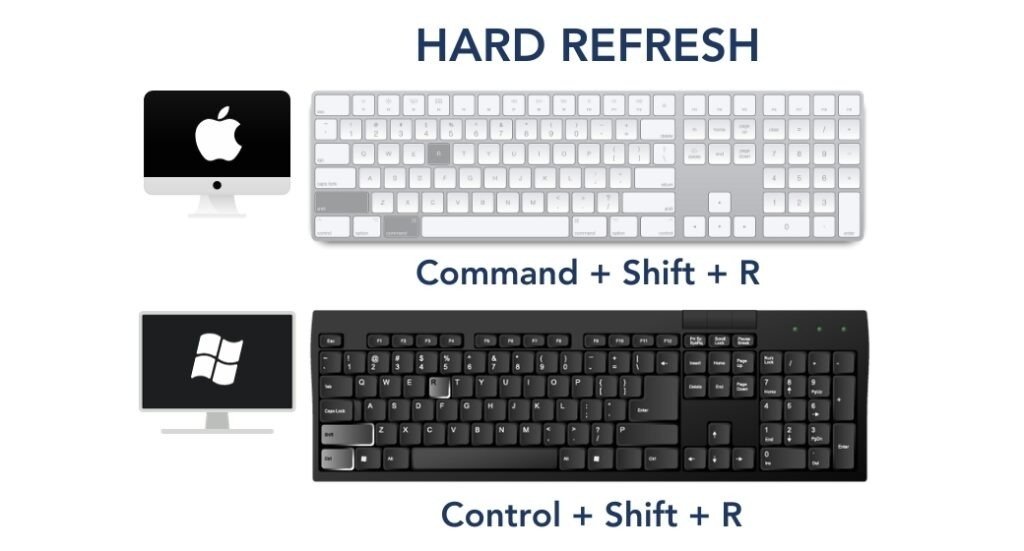
Fix : Hard Refresh Pinterest (Quickest Solution)
This resolves the issue for many users instantly.
On Desktop (Windows / Mac)
- Open Pinterest
- Press:
- Windows: Ctrl + Shift + R
- Mac: Cmd + Shift + R
This forces Pinterest to reload without cached scripts.
Fix : Clear Browser Cache & Cookies (Most Effective)
If Pinterest still won’t scroll, clear site data.
Google Chrome
- Go to Settings
- Privacy & Security → Clear browsing data
- Select:
- Cached images and files
- Cookies and site data
- Click Clear data
- Restart browser
Firefox / Edge / Safari
Use the equivalent cache-clearing option in privacy settings.
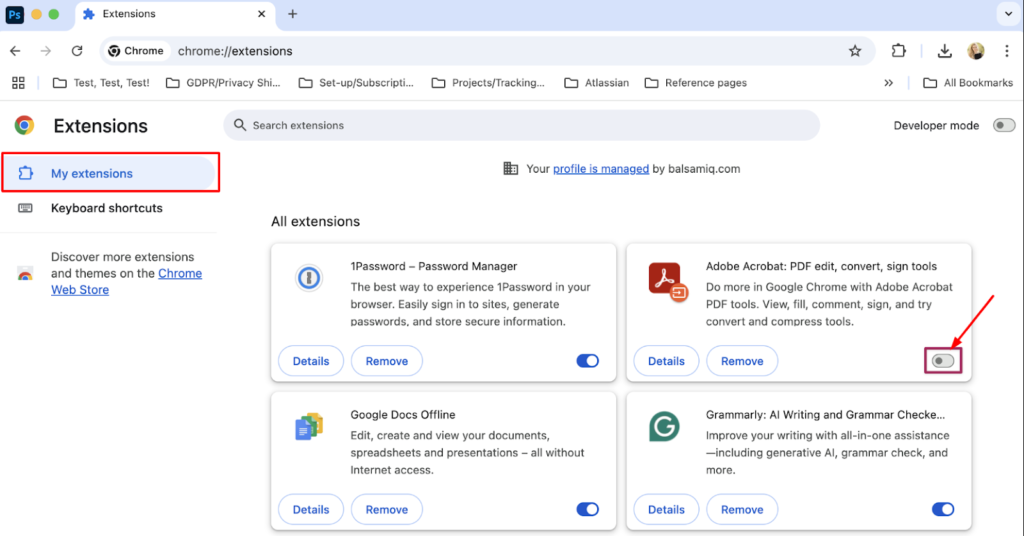
Fix : Disable Browser Extensions (Very Common Cause)
Extensions are the #1 cause of Pinterest scroll issues.
Especially problematic extensions:
- Ad blockers (uBlock, AdGuard)
- Privacy tools
- Script blockers
- Dark mode extensions
How to test:
- Open Incognito / Private mode
- Visit Pinterest
- Try scrolling
If scrolling works → an extension is the problem
Permanent fix:
- Disable extensions one by one
- Whitelist Pinterest in your ad blocker
Fix : Update Your Browser or Pinterest App
Pinterest scrolling relies on modern browser APIs.
Desktop
- Update Chrome / Edge / Firefox to the latest version version

Mobile
- Open App Store / Play Store
- Update the Pinterest app
Outdated versions are known to cause infinite scroll failure.

Fix : Switch Input Method (Touchpad / Mouse Fix)
On laptops, Pinterest may not respond to touchpad gestures correctly.
Try this:
- Use the mouse scroll wheel instead of the touchpad
- Disable smooth scrolling in browser settings
- On Mac: System Settings → Trackpad → Disable momentum scrolling (temporarily)
This works especially well on MacBooks and Windows laptops.
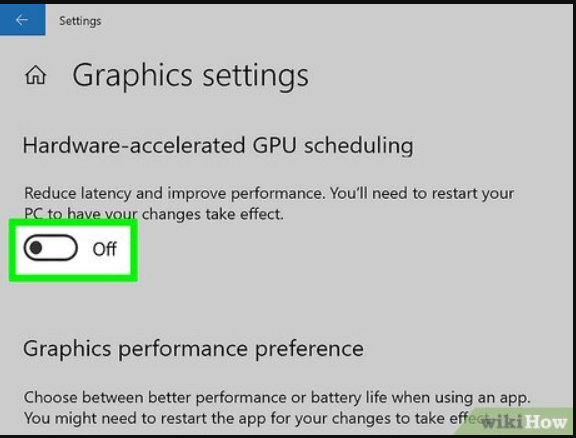
Fix : Turn Off Hardware Acceleration (Desktop Only)
Hardware acceleration sometimes conflicts with Pinterest rendering.
Chrome / Edge
- Settings → Advanced
- System → Turn off hardware acceleration
- Restart browser
Fix : Log Out and Log Back In
Pinterest sessions occasionally bug out.
- Log out of Pinterest
- Close the browser or app
- Reopen Pinterest
- Log back in
This resets session-level issues tied to your account.
Fix : Check Pinterest Server Status
If none of the above works, Pinterest may be experiencing issues.
How to check:
- Search “Pinterest down”
- Check Downdetector reports
- Try accessing Pinterest from another device or network
If scrolling fails everywhere, wait 1–2 hours and try again.
Mobile-Specific Fixes (iPhone & Android)
If Pinterest won’t scroll on mobile:
iPhone
- Force close the app
- Update app
- Restart phone
- Reinstall Pinterest (last resort)
Android
- Settings → Apps → Pinterest
- Clear cache (not data)
- Update app

When Nothing Works (Advanced Fix)
If Pinterest still won’t scroll:
- Try a different browser
- Try a different Wi-Fi or mobile network
- Disable VPNs or proxy connections
- Create a temporary new Pinterest account to test if it’s account-specific
If scrolling works on a new account, your original account may have a corrupted feed state (rare, but real).
Why Pinterest Scrolling Issues Keep Happening
Pinterest uses:
- Infinite scroll
- Heavy JavaScript
- Personalized feed loading
This makes it sensitive to cache issues, blockers, and browser updates.
Most scrolling problems are client-side, not Pinterest’s fault.
Final Checklist (Fast Troubleshooting)
If Pinterest won’t scroll:
- ✅ Hard refresh
- ✅ Clear cache
- ✅ Disable extensions
- ✅ Update browser/app
- ✅ Restart device
- ✅ Check server status
One of these will fix it in nearly all cases.
Conclusion
If you’re wondering “why can’t I scroll on Pinterest?”, the issue is usually caused by browser cache, extensions, or outdated software—not Pinterest itself.
Follow the fixes above in order, and you’ll restore scrolling in minutes.If the problem keeps returning, consider using a clean browser profile dedicated to Pinterest.