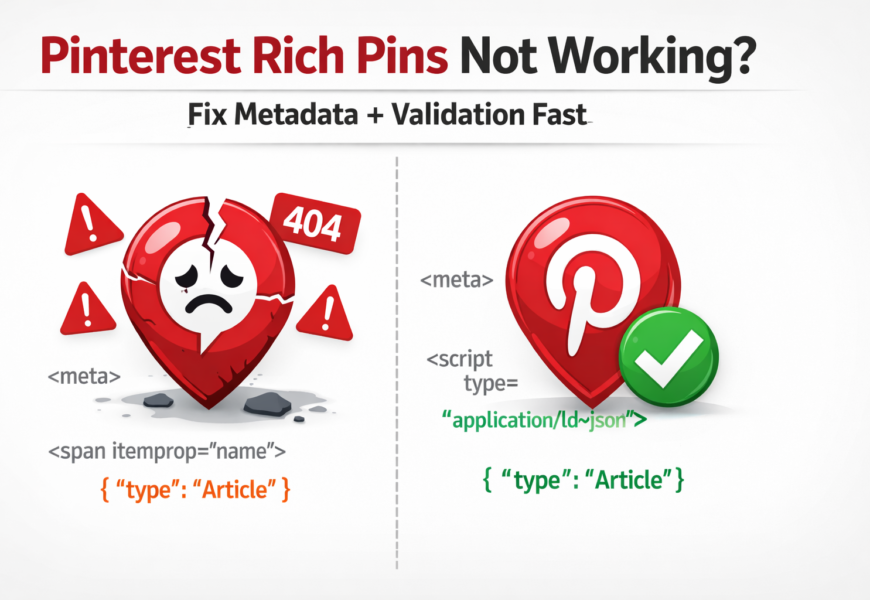
Pinterest Rich Pins Not Working? Fix Metadata + Validation (2026)
Pinterest Rich Pins are supposed to make your Pins “smarter”—but when they stop working, you’ll often see missing titles, outdated descriptions, wrong authors, or zero rich metadata showing at all.
Pinterest defines Rich Pins as Pins that automatically sync information from your site, and they periodically update when something changes on your original page.
For blogs, Article Rich Pins can show your post’s headline/title, description, and author pulled directly from your site.
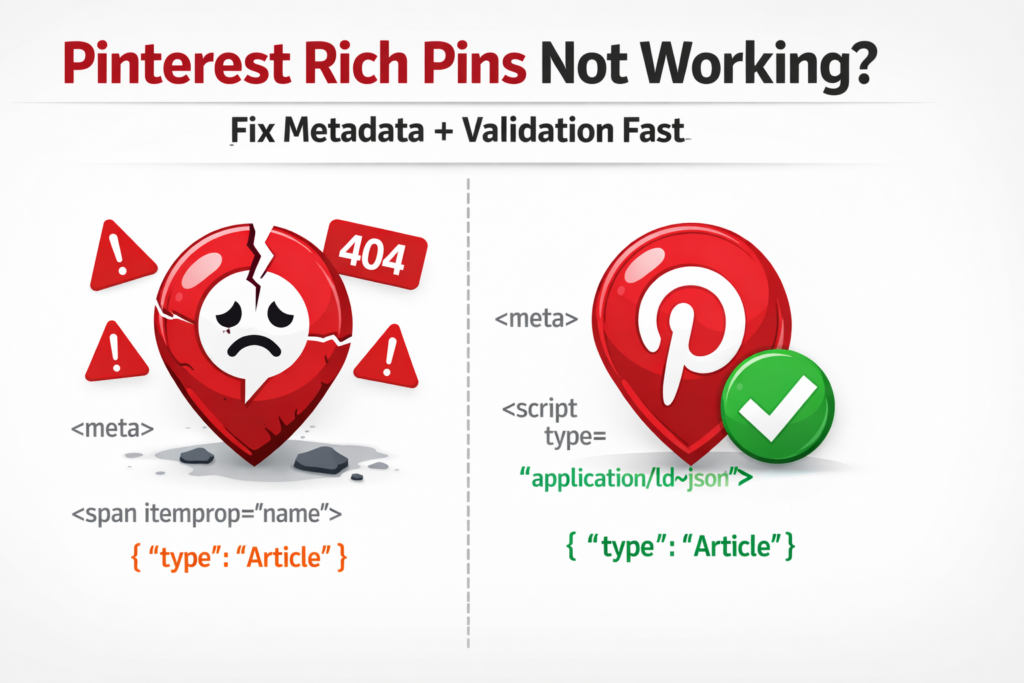
This guide shows you the exact reasons Rich Pins fail—and the fastest fixes.
Quick answer
If Pinterest Rich Pins aren’t working, do these in order:
- Confirm your page has the required Open Graph (OG) or Schema.org article metadata in the <head>
- Clear caching (WordPress cache + CDN) and re-check the page source
- Make sure your canonical URL matches the URL you’re validating (no weird redirects)
- Avoid plugin conflicts (two SEO plugins = broken OG tags)
- Re-validate/apply, then wait—Pinterest says syncing can take up to 24 hours
- Undo manual edits: Pinterest says manual edits to article/recipe rich Pins overwrite the rich metadata
What are Rich Pins (and what do Article Rich Pins show)?
Pinterest says Rich Pins automatically sync information from your site, and you can identify them by the extra info shown when you click into the Pin.
Pinterest lists three Rich Pin types:
- Recipe Rich Pins (recipe fields like cook time, ingredients, etc.)
- Article Rich Pins (headline/title, description, author)
- Product Rich Pins (pricing/availability/product info)
For bloggers: Article Rich Pins are the most important because they can display your post details directly on the Pin.
Why your Rich Pins aren’t working (most common causes)
1) Missing Open Graph (OG) / Schema markup
Pinterest says Article Rich Pin data requires you to add Open Graph or Schema.org markups inside the <head> section of each page you want to enable.
Pinterest even shows example OG tags for articles, such as:
- og:title
- og:description
- og:type = article
Fix: Make sure your SEO plugin outputs OG tags on posts.
2) Caching (Pinterest is seeing an old version of your page)
If your WordPress cache/CDN is serving an older page version, Pinterest may keep reading old metadata.
Fix checklist:
- Clear WordPress cache plugin
- Clear CDN cache (Cloudflare, etc.)
- Re-check the page source to confirm new OG tags appear
3) Wrong canonical URL / redirects
If your page resolves like this:
http → https → www → non-www → /?ref=something
Pinterest may validate the wrong URL or read inconsistent metadata.
Fix:
- Use one clean canonical format
- Keep the exact URL consistent (the same URL you pin should be the one that contains the metadata)
4) Plugin conflicts (two SEO plugins = broken OG tags)
This is extremely common on WordPress:
- Yoast + Rank Math together
- An OG plugin + SEO plugin
- Theme adding OG tags + plugin adding OG tags
Result: duplicated or conflicting og:title/og:description.
Fix: Use one system to generate OG tags (usually your SEO plugin), and disable other OG/meta generators.
5) You manually edited a Rich Pin (and overwrote the metadata)
This is the sneaky one.
Pinterest explains how syncing works:
- Article and recipe Rich Pins update automatically when you edit your site
- But if you manually edit a recipe or article Rich Pin on Pinterest, your manual info overwrites the rich metadata
Fix: If your Rich Pin looks “stuck” on old/incorrect text, check whether you (or a VA) manually edited the Pin. Remove/undo the manual override (or create a fresh Pin after fixing the page).
6) You’re expecting instant updates
Pinterest says it may take up to 24 hours for content from your site to sync to your rich Pin.
So if you just fixed your metadata, give it a full day.
Step-by-step: Fix Pinterest Article Rich Pins on WordPress (2026)
Step 1: Confirm your post is eligible as an “article”
Pinterest describes an article as a page that contains text (like a news article or blog post) and notes they do not consider pages with mostly images and little text to be articles.
Step 2: Check your post has required metadata (fastest verification)
Open your blog post in Chrome → right-click → View Page Source → search for:
- og:title
- og:description
- og:type (should be article)
If these are missing: enable Open Graph in your SEO plugin.
Step 3: Fix your Open Graph output (WordPress)
Common options:
- Turn on Open Graph in your SEO plugin settings
- Ensure posts aren’t set to “noindex” accidentally (some plugins alter metadata output)
- Ensure the featured image is set (many OG systems depend on it)
Step 4: Remove conflicts + purge cache
- Disable extra OG plugins
- Purge cache again
- Re-check page source to confirm only one set of OG tags appears
Step 5: Re-check Rich Pin priority (rare but real)
If you have multiple Rich Pin types on one page, Pinterest’s developer docs note Pinterest chooses based on priority: Product > Recipe > Article.
So if your page accidentally looks like a product/recipe, Pinterest might not display it as an Article Rich Pin.
Step 6: Wait for the sync window
Pinterest: up to 24 hours for your updates to sync.
How to refresh/update Rich Pin data properly
Pinterest says Rich Pins periodically update when something changes on the original site.
So the most reliable way to “refresh” is:
- Fix metadata on the post
- Confirm it exists in the page source
- Clear caches
- Wait up to 24 hours
Avoid: making manual edits on Pinterest unless you want to override the site metadata.
How to disable Rich Pins for a specific page
Pinterest says you can remove rich Pin data from a specific page by adding this tag:
<meta name=”pinterest-rich-pin” content=”false” />
This overrides rich meta tags for that page only.
FAQ
Why are my Pinterest Rich Pins not showing?
Usually because your page is missing the required Open Graph or Schema.org metadata in the <head>, or Pinterest is reading a cached/redirected version of your URL. Pinterest says Rich Pins sync data from your site and update periodically.
What do Article Rich Pins show?
Pinterest says Article Rich Pins add the headline/title, description, and author of the article or blog post from your site.
Why won’t my Rich Pin update after I changed my post?
Pinterest says syncing can take up to 24 hours. Also, manual edits on Pinterest can overwrite the rich metadata for article/recipe Pins.
Can editing the Pin description mess up Rich Pins?
Pinterest says manual edits to an article/recipe Rich Pin overwrite the rich metadata.
So yes—manual edits can make Rich Pins appear “stuck” or inconsistent with your site.