Leaving a Pinterest board should be simple, but many users struggle to find the option—especially after Pinterest’s recent interface updates. Whether you joined a collaborative board by mistake, no longer want to see its content, or are cleaning up your Pinterest account, this fully updated guide explains exactly how to leave a Pinterest board.

- Desktop (Windows & Mac)
- iPhone and Android apps
- Secret boards
- Missing “Leave board” issues
- What happens after you leave
- Alternatives if you can’t leave
What Does “Leaving a Pinterest Board” Mean?
Leaving a Pinterest board removes you as a collaborator. Once you leave:
- The board disappears from your profile
- You lose access to all pins on that board
- You stop receiving notifications
- You cannot rejoin unless invited again
Important:
You can only leave boards created by someone else. If you own the board, Pinterest does not allow you to leave it—you must archive or delete it instead.
Who Can Leave a Pinterest Board?
You can leave a board if:
- It is a collaborative board
- You were invited by another user
- You are not the board owner
You cannot leave:
- Boards you created
- Non-collaborative boards
- Archived boards (must restore first)
How to Leave a Pinterest Board on Desktop
Step-by-Step Instructions
- Log in to Pinterest
- Visit pinterest.com and sign in
- Open Your Profile
- Click your profile photo in the top-right corner
- Open the Board
- Click the board you want to leave
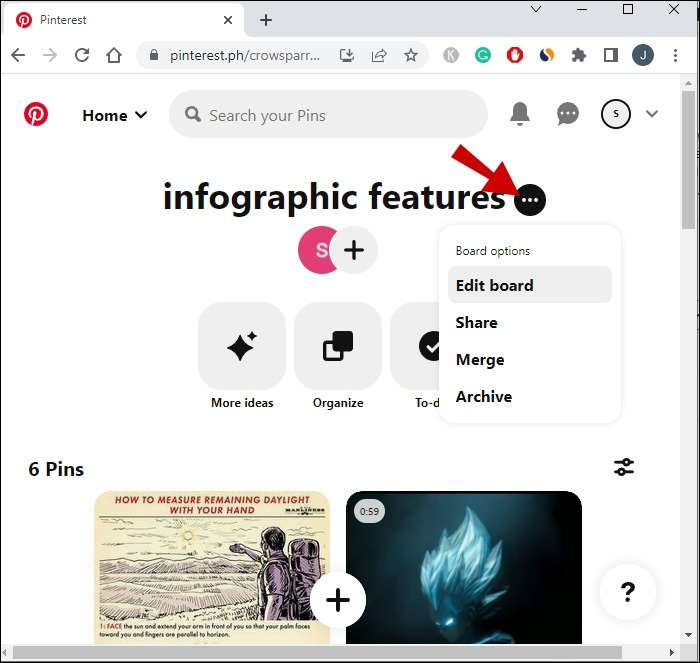
- Open the Board Menu
- Click the three dots (⋯) next to the board name
- Select “Leave board”
- This appears only if you are a collaborator
- Confirm
- Click Leave to finalize
✅ The board is removed instantly from your account.
How to Leave a Pinterest Board on iPhone or Android
Mobile App Steps (Pinterest 2025 UI)
- Open the Pinterest app
- Tap your profile icon
- Open the board you want to leave
- Tap the three dots (⋯) in the top-right corner
- Tap Board settings
- Scroll down and tap Leave board
- Confirm by tapping Leave
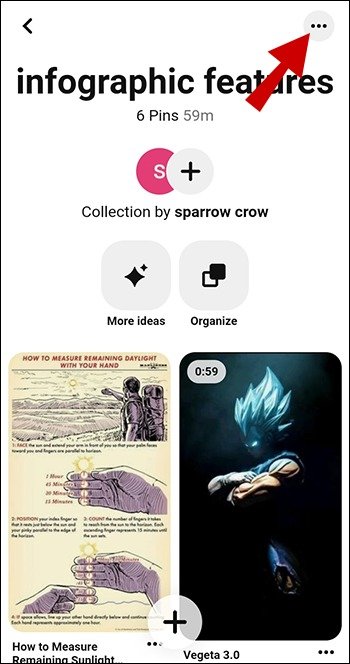
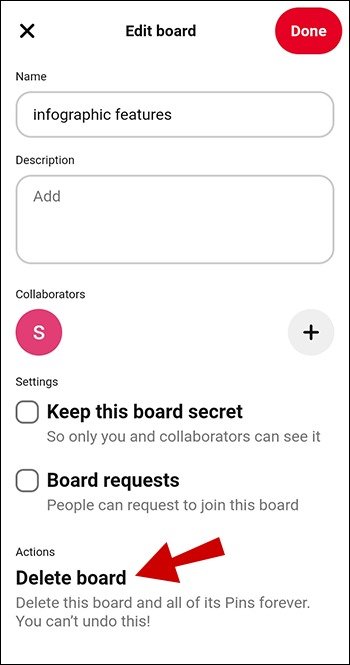
📱 These steps are identical on iOS and Android.
How to Leave a Secret Pinterest Board
Leaving a secret board works the same way as public boards if you are not the owner.
Steps:
- Go to your profile
- Scroll to Secret boards
- Open the board
- Tap Board settings
- Select Leave board
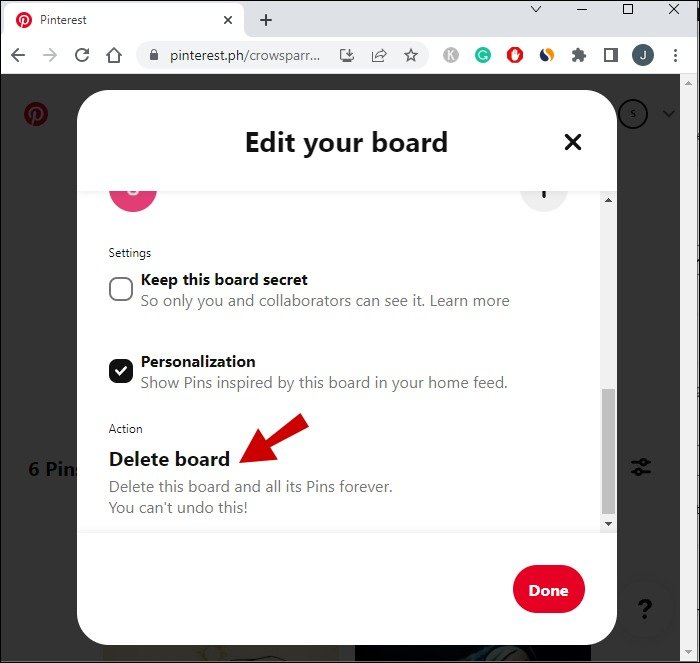
🔒 Once you leave, the board disappears completely from your account.
Why You Don’t See the “Leave Board” Option (Most Common Problems)
Problem: You Are the Board Owner
Explanation: Pinterest does not allow board owners to leave their own boards.
Solution:
- Archive the board (recommended)
- Or delete it permanently
Problem: The Board Is Not Collaborative
Explanation: Only collaborative boards allow collaborators to leave.
Solution:
- Confirm you were invited
- Ask the owner to remove you
Problem: Pinterest App Is Outdated
Explanation: Older versions hide board controls.
Solution:
- Update Pinterest from the App Store or Google Play
- Restart the app
Problem: Temporary Pinterest Bug
Solution checklist:
- Log out and log back in
- Try leaving from the desktop
- Clear app cache (Android)
- Use a different browser
What Happens After You Leave a Pinterest Board?
After leaving:
- Your profile is removed from the board
- You no longer see new pins
- You receive no notifications
- Your saved pins remain on other boards
❗ Pinterest does not notify the board owner.
What If You Can’t Leave a Board?
Option: Ask the Board Owner
- Send a message requesting removal
Option: Remove Your Pins
- Manually delete your pins from the board
- This reduces visibility but does not fully remove you
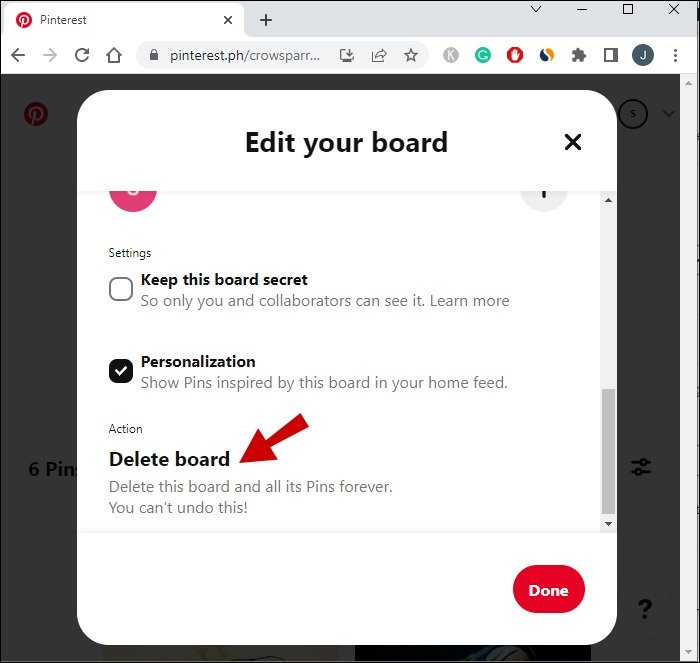
How to Archive a Board Instead (If You Own It)
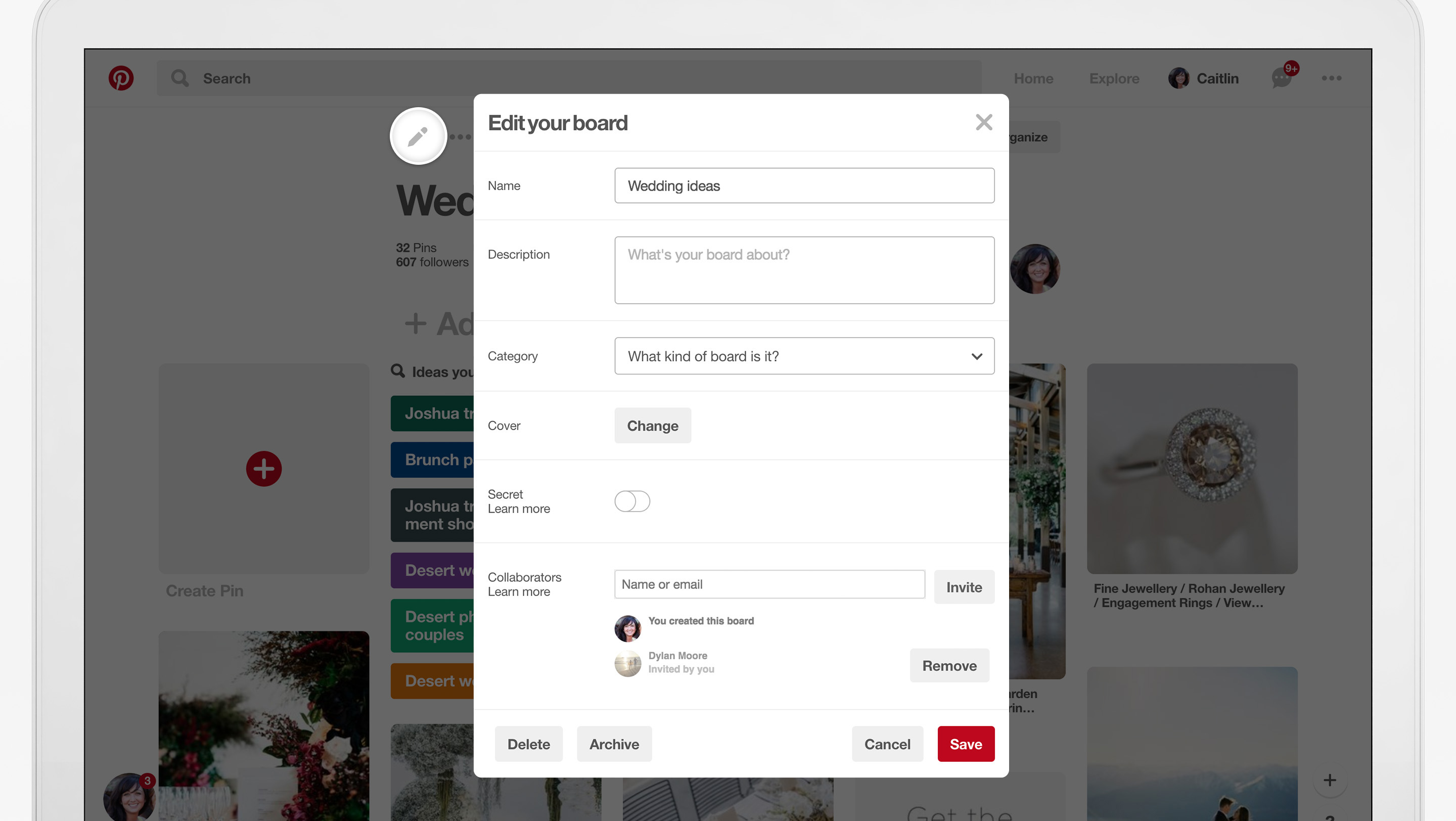

If you own the board and don’t want to delete it:
- Open the board
- Go to Board settings
- Select Archive
- Confirm
Archived boards:
- Are hidden from your profile
- Can be restored anytime
- Do not appear publicly
Frequently Asked Questions
Can someone see if I leave their Pinterest board?
No. Pinterest does not send notifications.
Can I rejoin a board after leaving?
Only if the owner sends a new invitation.
Does leaving a board delete my pins?
No. Pins saved elsewhere remain untouched.
Why am I added to boards automatically?
Some creators auto-invite collaborators. You can leave or block the user.
Best Practices for Managing Pinterest Boards
- Leave inactive or spam boards regularly
- Keep collaborative boards niche-focused
- Archive unused boards instead of deleting
- Avoid joining too many boards (hurts feed relevance)
- Review collaborators every few months
Conclusion
Leaving a Pinterest board in 2025 is straightforward once you understand Pinterest’s current layout—but UI changes, ownership rules, and app bugs often confuse users. The key takeaway is simple:
- Collaborator? → You can leave
- Owner? → Archive or delete
- Option missing? → Update app or use desktop
By following the steps and solutions in this guide, you can confidently manage your Pinterest boards, clean up your profile, and avoid unnecessary clutter in your feed.